What you will find
The server includes a mix of public gaming spaces and permission-controlled Minecraft spaces.
- 01General gaming text chat
- 02General gaming voice rooms
- 03Minecraft-specific text chat
- 04Minecraft voice room
- 05Private Minecraft administration and moderation rooms
Why Minecraft rooms start locked
Linking confirms which Minecraft player belongs to your Discord account. An ordinary linked player receives the Minecraft text and voice channels; administrative rooms still require the appropriate server permissions and LuckPerms assignments.
Link your Minecraft account
You only need to do this once unless you later unlink the account.
Join the Minecraft server
Connect to mc.nathanpretty.com with Minecraft: Java Edition, then enter the world.
Request a linking code
Open Minecraft chat and run the command below. The server will reply with a temporary code.
Type this in Minecraft chat/discord link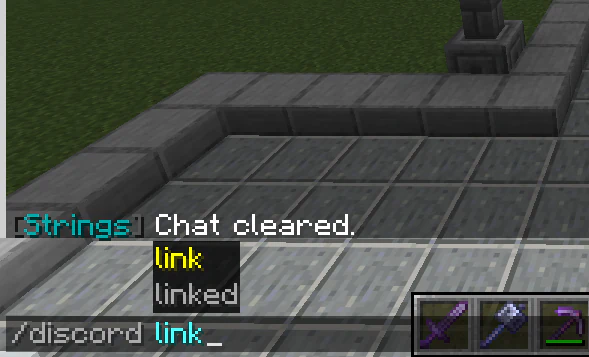
Minecraft chat autocomplete showing the /discord link command. 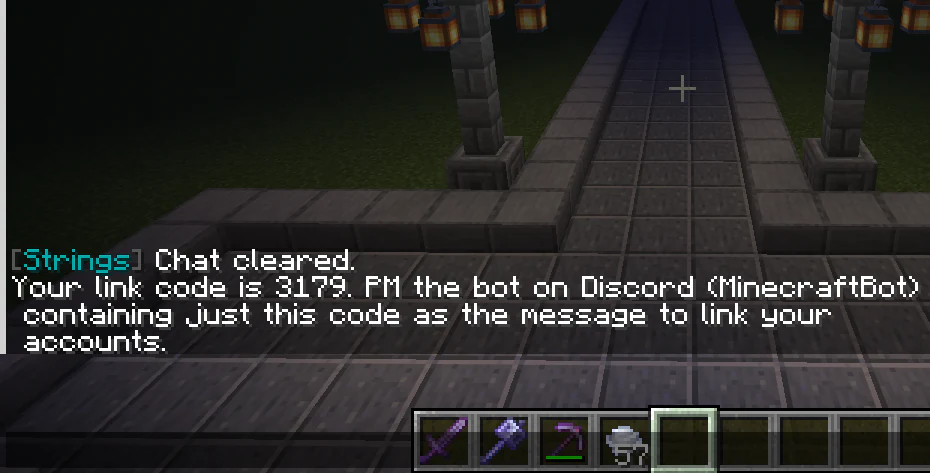
The server response containing the temporary account-link code and bot instructions. Send the code in Discord
Open Discord and send or provide that code to the Minecraft bot account as directed. Do not share the code publicly.
Confirm the link and check access
After MinecraftBot confirms the account link, the Minecraft text and voice rooms should appear. The Minecraft text room synchronizes with in-game chat.
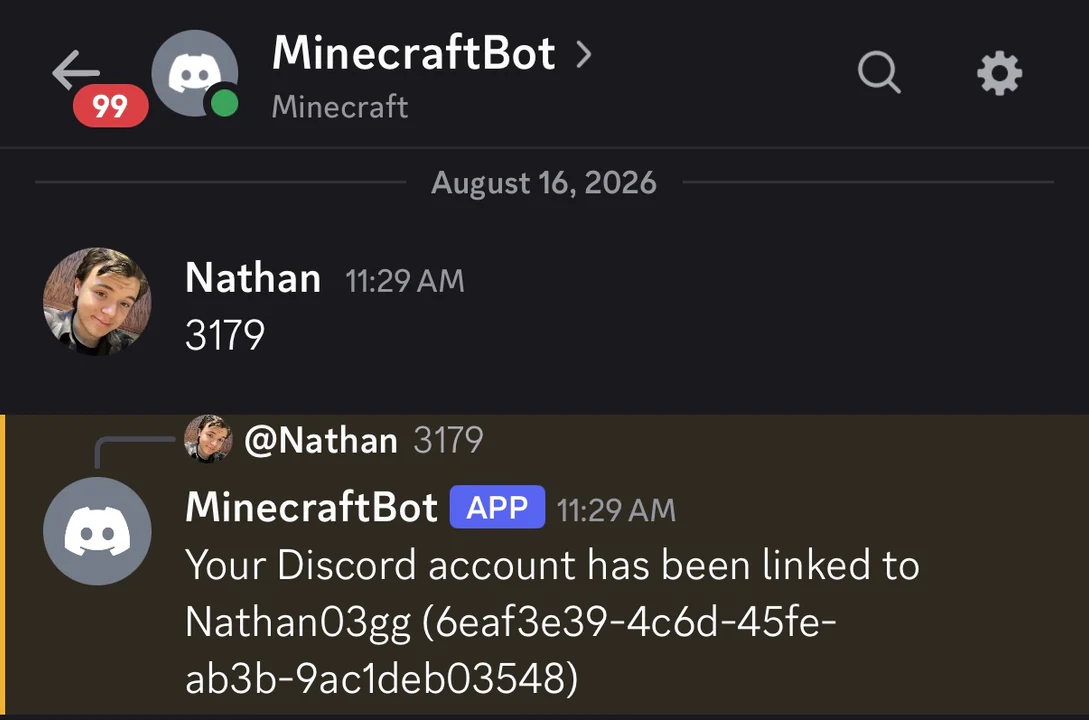
A Discord message from MinecraftBot confirming that the Minecraft account was linked.
What linking unlocks
Ordinary players gain the public Minecraft text chat and Minecraft voice chat. It does not grant moderator or administrator access.
Unlink an account
To remove the association, run this command in Minecraft chat. You may lose access to the linked Minecraft rooms.
/discord unlink