
Open the official download page
Use the official Simple Voice Chat download link from this site. Avoid unofficial mirrors, reposted JAR files, and downloads sent through private messages.
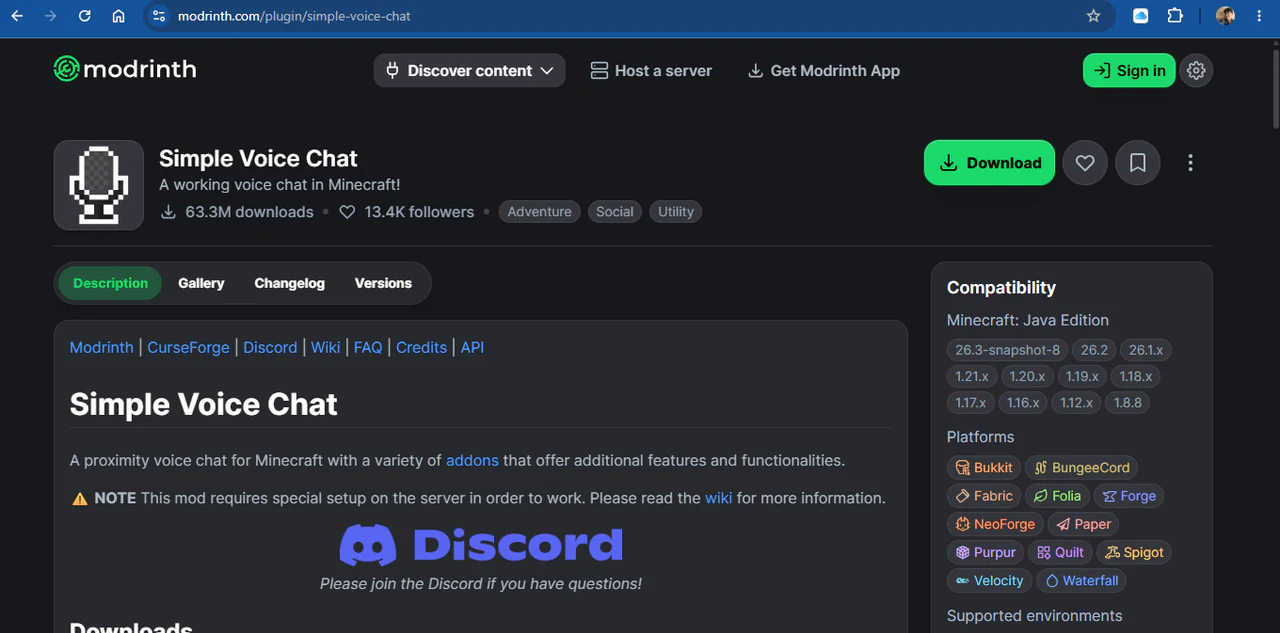
The official Modrinth page for the Simple Voice Chat Minecraft mod. Select and install the matching file
On the official download page, choose the Minecraft version you use to join this server and your client’s mod loader, then install the matching Simple Voice Chat JAR. Put it in that game profile’s mods folder and relaunch Minecraft. The server uses the Paper plugin; your client loader is independent of the server software.
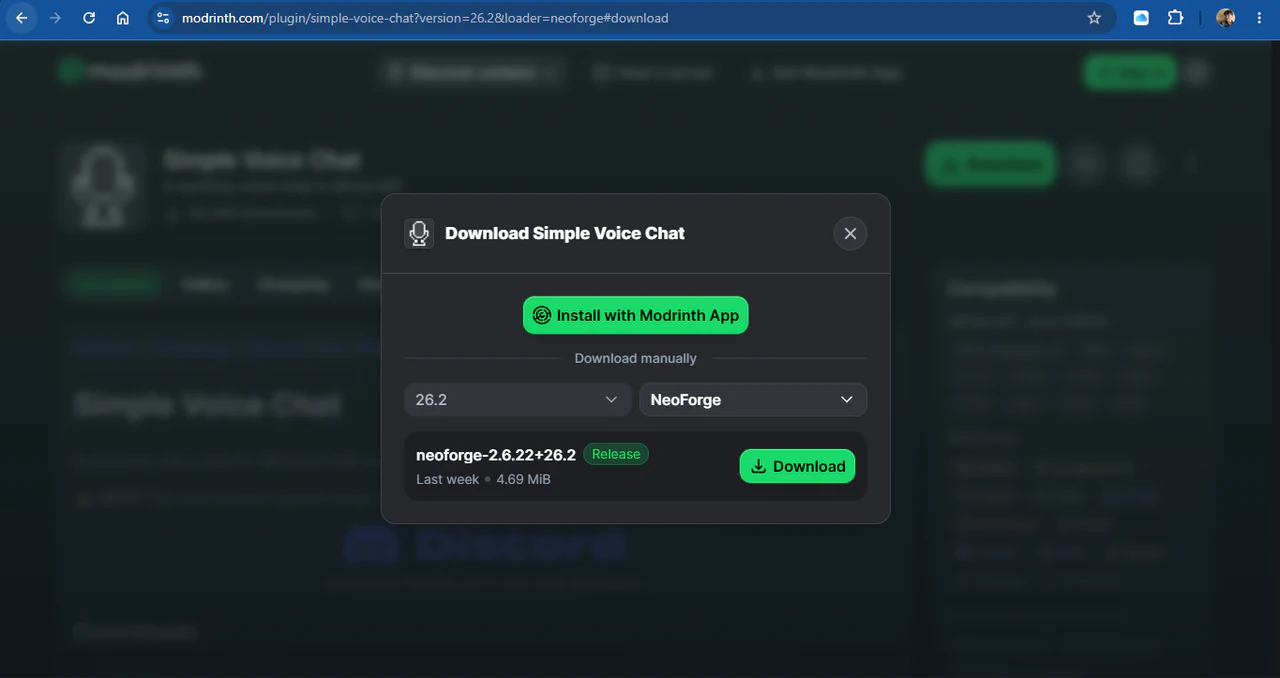
The Modrinth download dialog lets the player select a matching Minecraft version and mod loader. Configure and test your audio
By default, press V to open Voice Chat, choose Settings, select the correct microphone and speaker, and use microphone testing. Choose push-to-talk or voice activation, then set a comfortable volume and activation threshold.
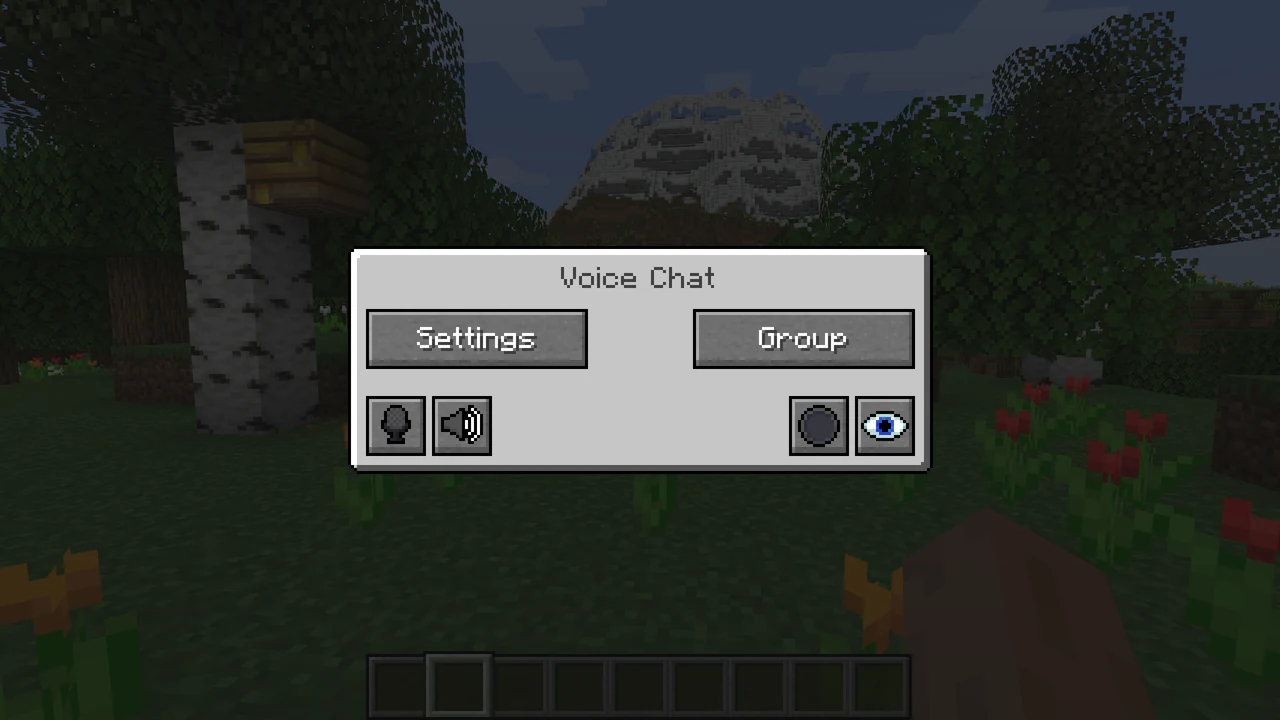
The main voice menu provides Settings, Group, microphone, and audio controls. 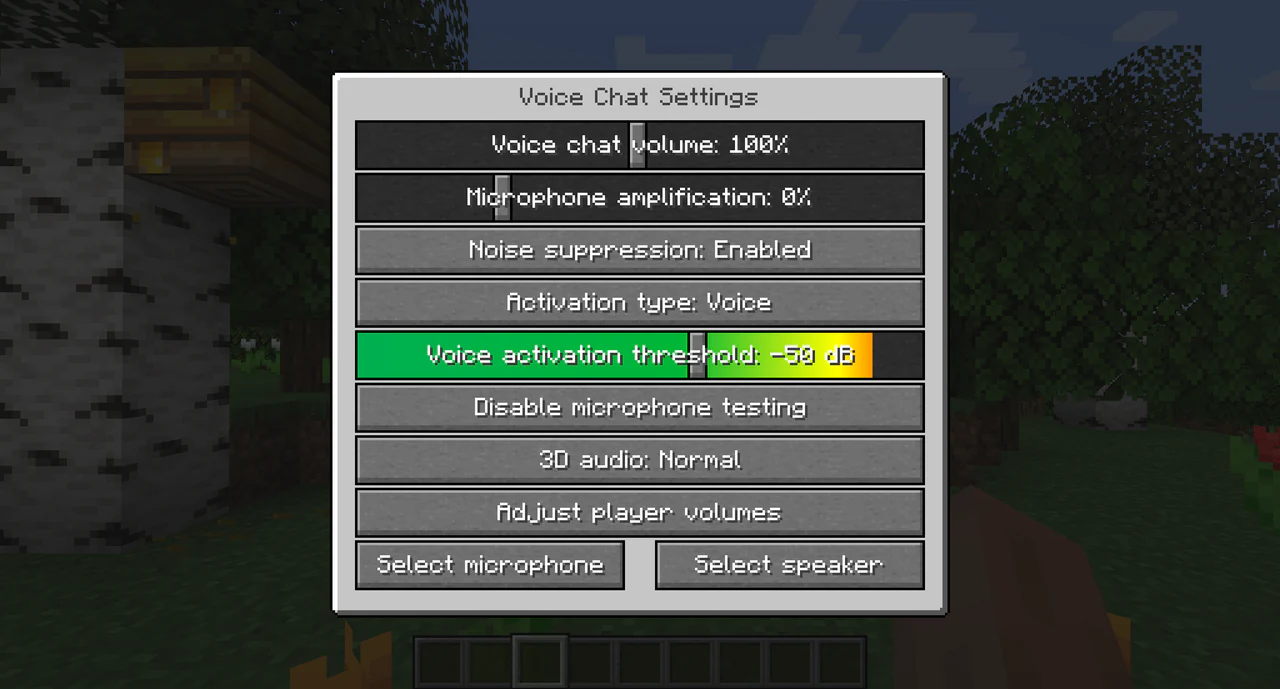
Voice Chat Settings provide volume, microphone amplification, noise suppression, activation, threshold, and device controls. Use the voice menu and proximity chat
The default keys are V for the main menu, M to mute while using voice activation, and N to disable voice chat. All three bindings can be changed. Nearby players with the mod hear you according to distance and server settings; players without it continue playing normally.
Create or join an optional group
Voice groups are enabled. Open the voice menu (V by default), choose Group, and create a named group with an optional password, or join one you were invited to. Group members can talk outside normal proximity; use a disposable example password in public screenshots and share real passwords privately.
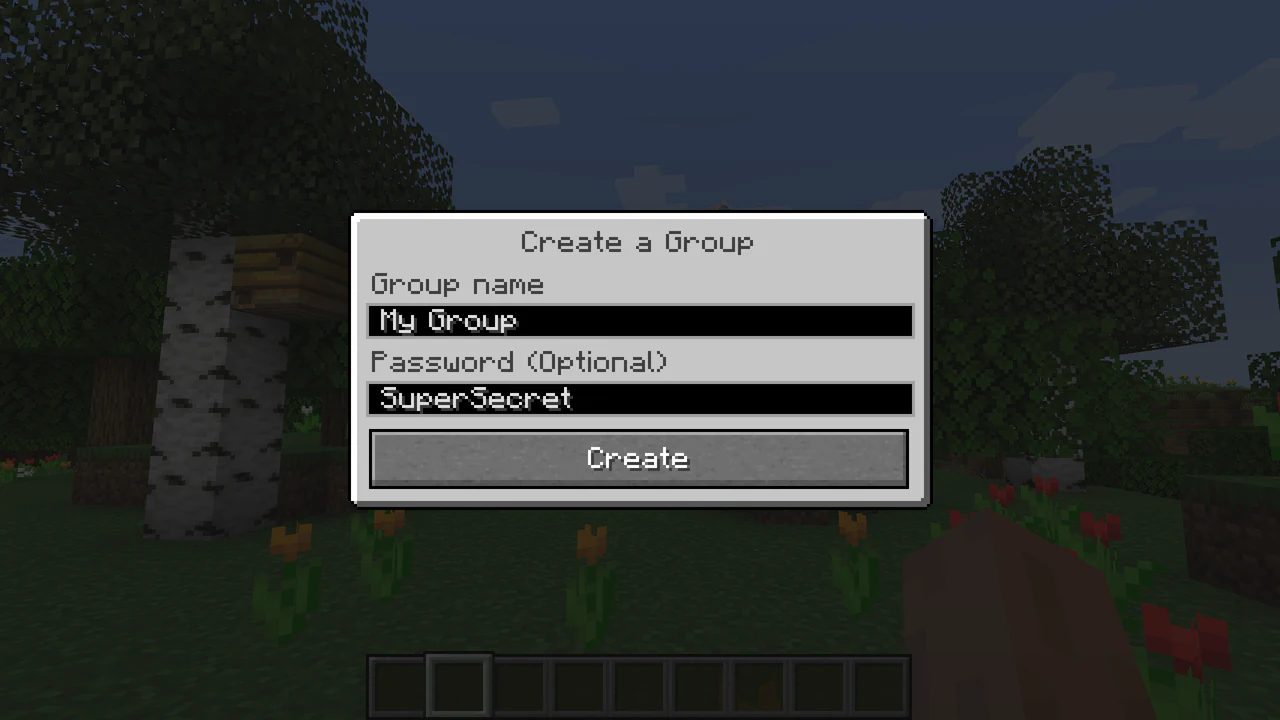
The group-creation dialog has a group name and an optional example password field. Check system permissions
Windows, macOS, and some launchers can block microphone access. Allow access only for the launcher or Java process you use, then restart the game.
Quick troubleshooting
- Confirm the download matches the Minecraft version you use to join the server and your client’s mod loader.
- Check the selected microphone and operating-system permission.
- Restart the client after changing devices or permissions.
- If voice chat does not connect, capture the relevant client log lines and menu state, then send a bug report.