
Know what a player shop is
A shop connects an item, a price, an owner, and a stock container. Clear signs or prompts should show whether the shop buys from players or sells to them.
Buying from a shop
Read the sign first and confirm the item, quantity, Credits price, and that the shop is selling to you. While standing normally, left-click the sign, shop block, or container to open the Trade UI, then complete the purchase there.
Selling to a shop
A buying shop pays players for the listed item while its owner has enough Credits and container space. Confirm the shop direction, then stand normally and left-click the sign, shop block, or container to open the Trade UI and complete the sale.
Create a selling shop
Place a chest, look at it, and hold the item or lot you want to sell. Run /shop create <price>, then check the generated sign for the owner, direction, item, lot size, and Credits price before stocking the chest. Creation costs 0 Credits, and there is currently no enforced per-player shop limit.
Type this in Minecraft chat/shop create <price>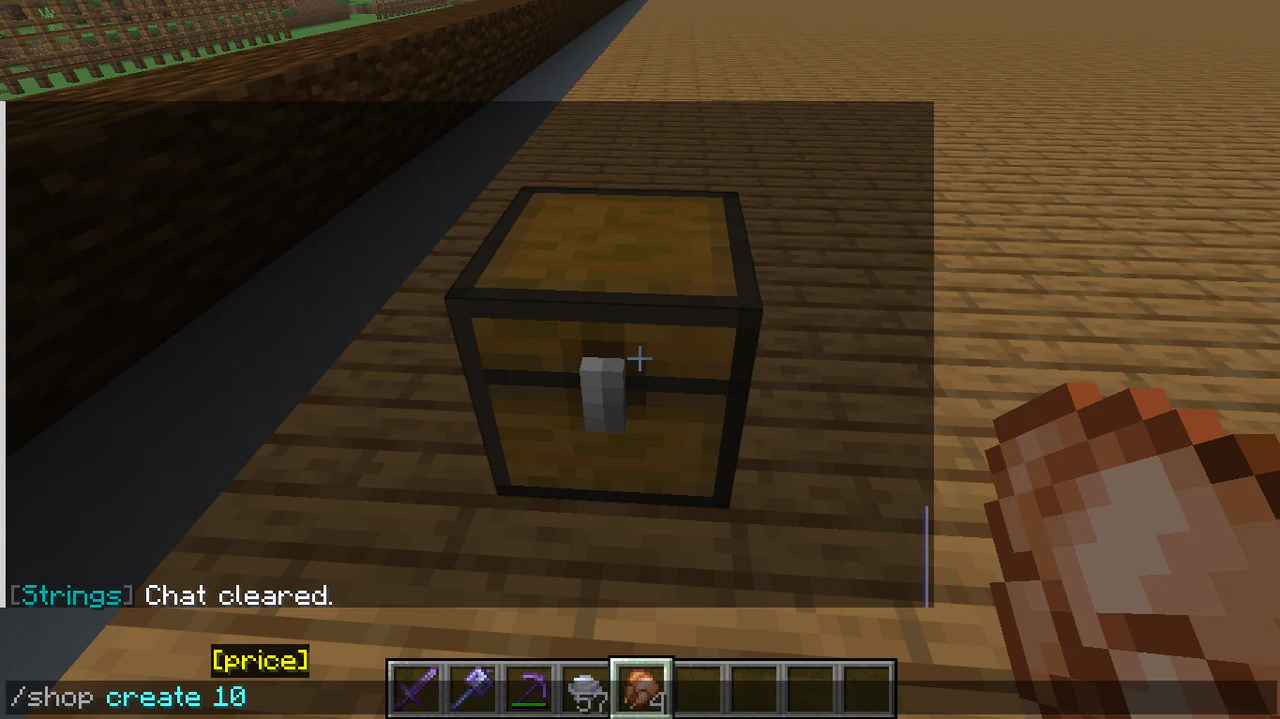
Minecraft chat shows /shop create 10 while the player aims at a chest and holds cooked chicken. 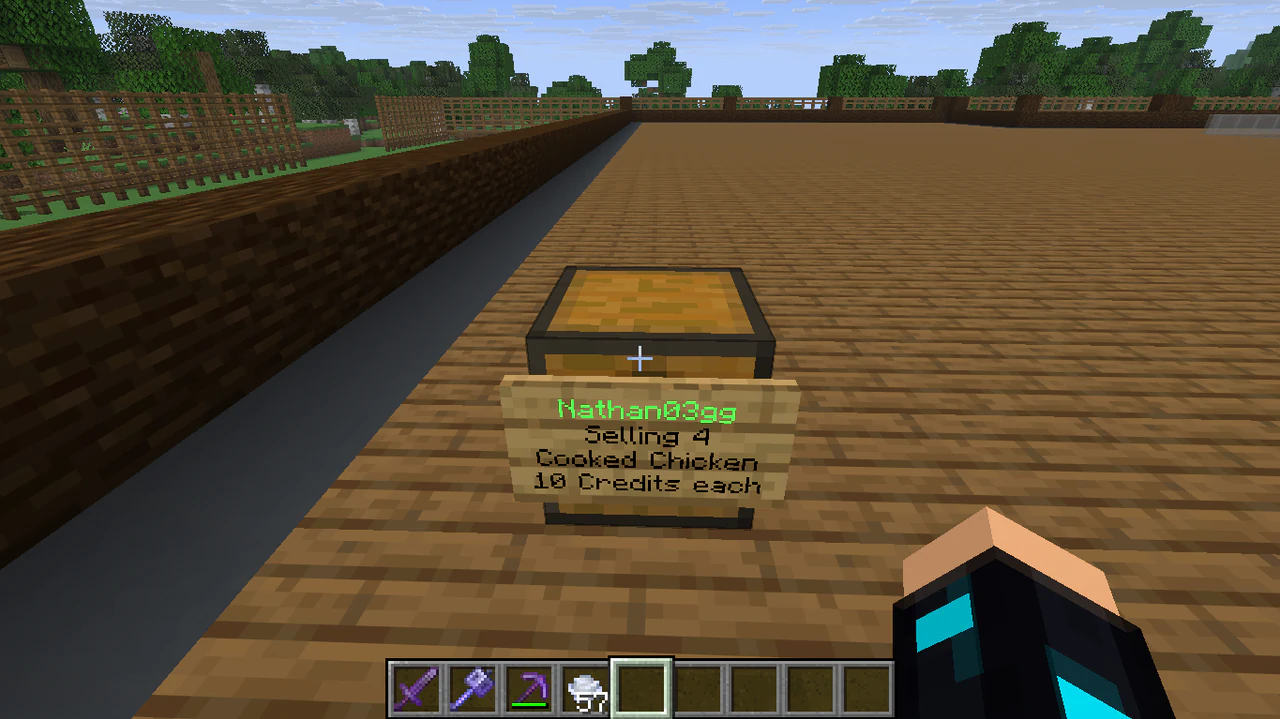
The completed QuickShop sign sells cooked chicken for 10 Credits each. Changing a shop
Right-click a shop sign to open its Control Panel. Owners can manage shop staff, manage staff across all their shops, toggle the display, transfer ownership, and transfer buy shops. Naming and price changes cost 0 Credits. Managing other players’ shops, changing their prices, signs, owners, or staff, and using the plugin’s elevated unlimited-shop permission require moderator access.
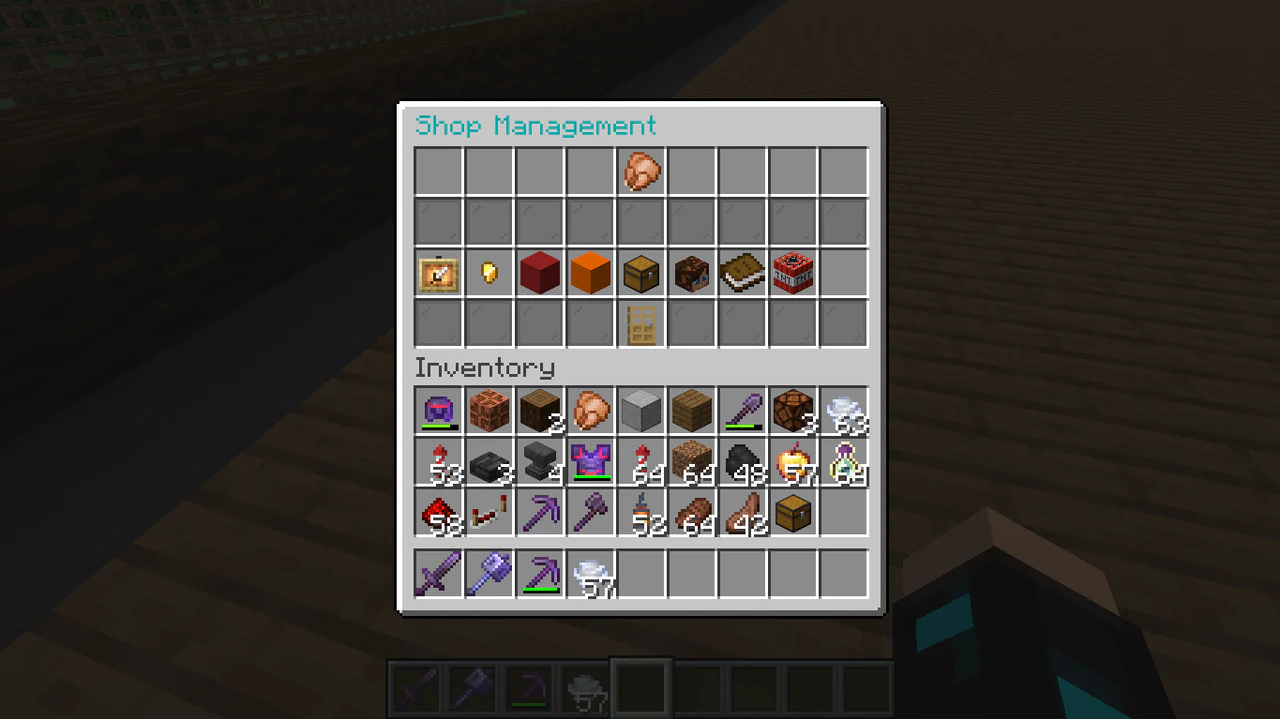
The Shop Management menu shows the configuration options enabled on this server. Removing a shop
QuickShop supports removing a shop by breaking its container or by using the removal control offered in the Shop Management panel. Follow the server prompt and secure any stored items first.
Managing stock
Selling shops need items available; buying shops need room for incoming items and enough owner Credits. Right-clicking the shop block or container opens the container normally. Clicking the floating display item does nothing.
Choosing a fair price
Use a clear price per listed quantity and check nearby shops. The server is intended to have a simple community economy, not a complicated financial system.
Paying with PlayerPoints
QuickShop uses PlayerPoints as the server’s Credits economy. Every transaction has a 5% flat tax, including unlimited-stock shops. The interacting player pays the tax, the transaction message shows it, and the tax is deposited into the configured tax account.
Avoiding common mistakes
Double-check buy versus sell direction, quantity, price, container space, stock, and your PlayerPoints balance before assuming a shop is broken.
Before reporting a shop problem
- Read every shop prompt carefully.
- Check stock, free container space, and both players’ likely currency requirements.
- Record the shop location, owner, item, price, and time.
- Do not repeatedly trigger a transaction that appears to duplicate or lose items; report it immediately.